Analysis
3D programme
The programme as blocks on a 3D timeline, and how to move around it.
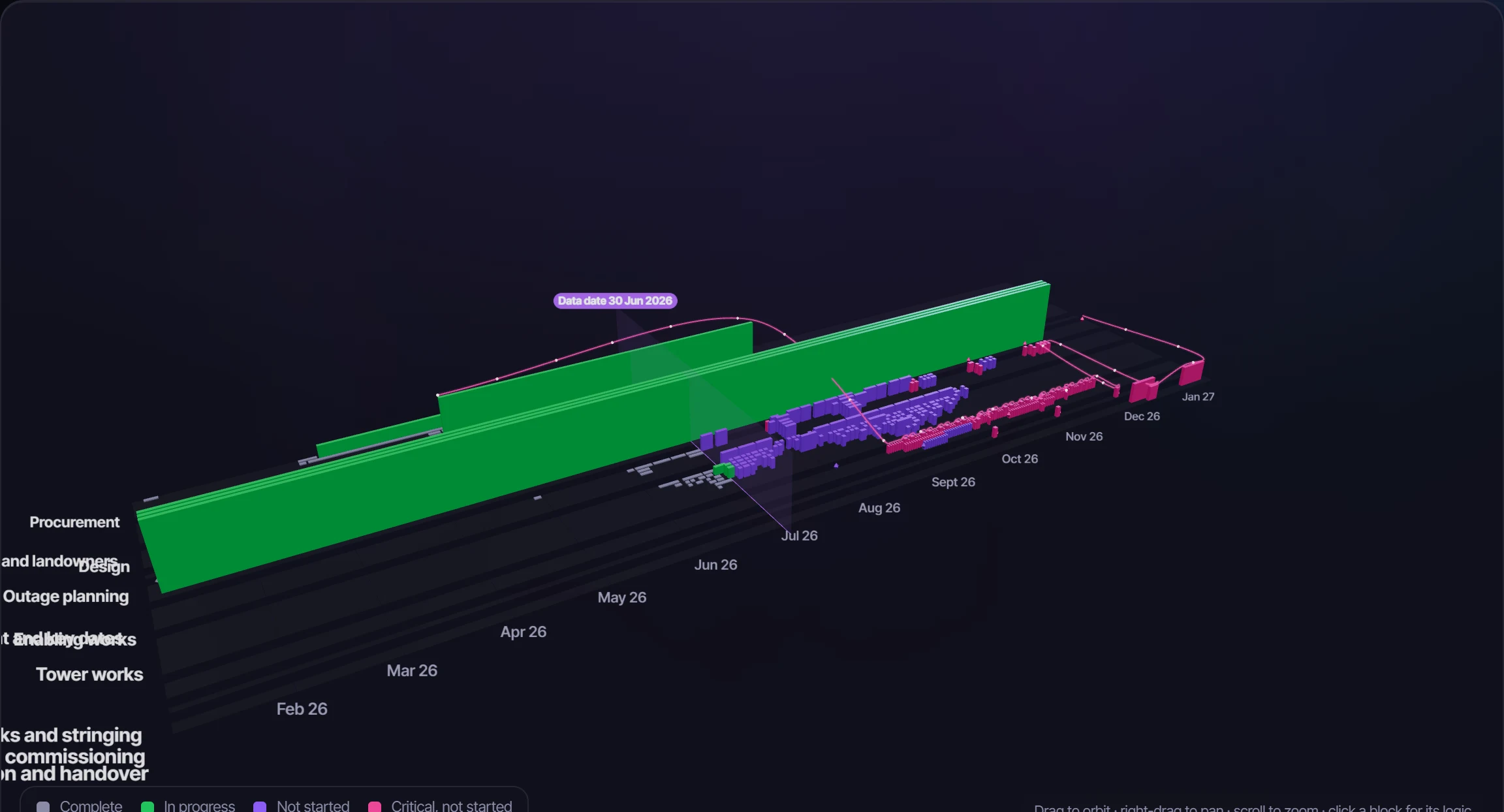
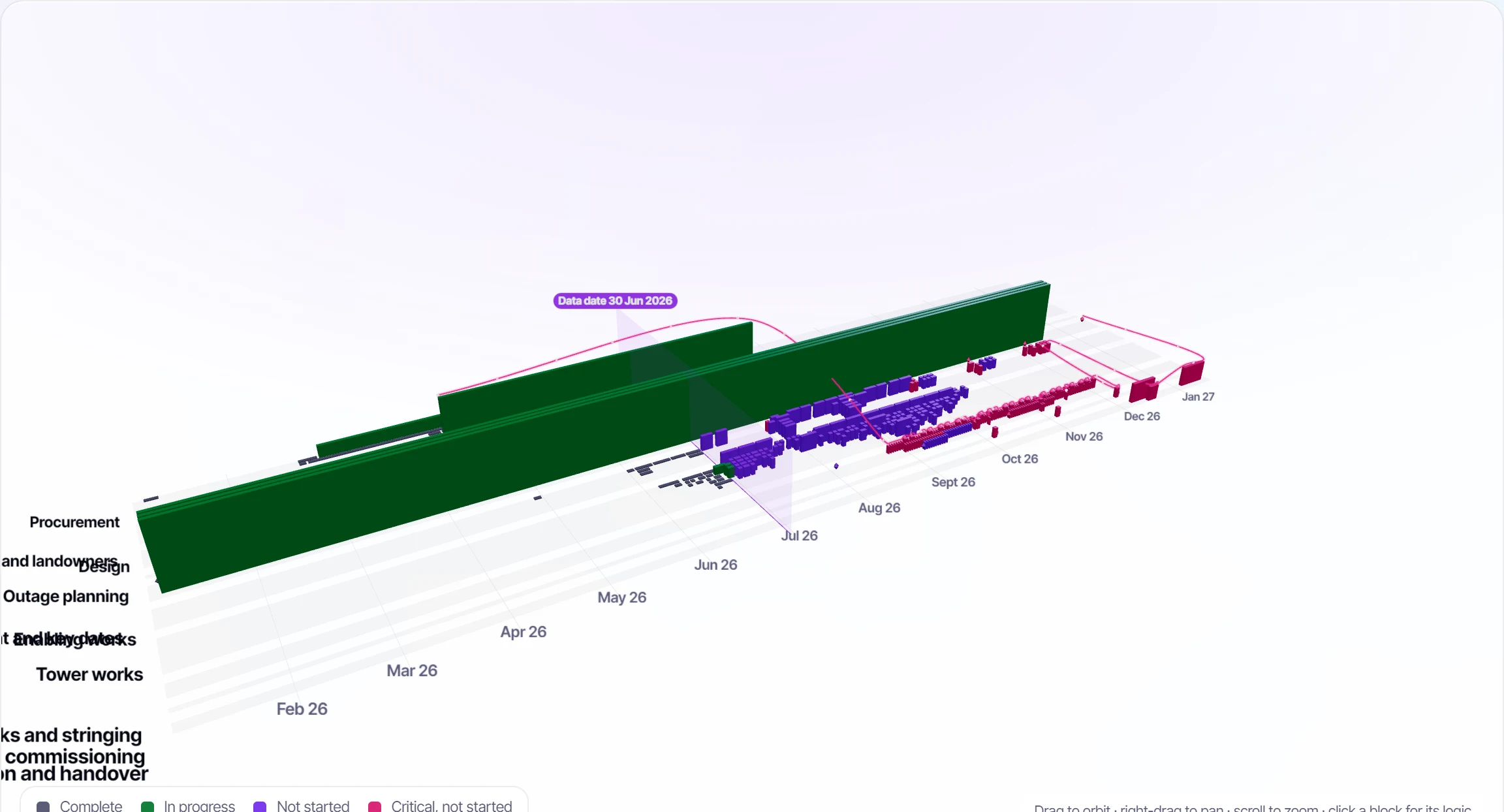
The 3D Programme tab draws the programme in three dimensions: every activity a block on a timeline. It's a way to see the shape of a job, where the work stacks up, where the float has gone, and the path that drives the finish.
The model#
- Time runs left to right.
- Each WBS area is a street. Activities that overlap in time stack into parallel rows. Streets picks the WBS level; Auto picks the deepest level with no more than 28 streets.
- Height is Work left (the remaining duration; finished work lies flat), or the Float landscape: high float rises and negative float sinks below the ground.
- Colour is by status, criticality or float.
- The data date is a glass wall.
- The driving path is a glowing tube with light running toward completion. Fly the driving path takes the camera along it.
Moving around#
Drag to orbit, right-drag to pan and scroll to zoom. Hover over a block for a summary; click it for its details, with arcs to its predecessors (amber) and successors (green). Overview, Top-down and Along the path set the camera.
Performance#
Tasks and milestones are drawn as two instanced meshes, so a few thousand activities are two draw calls. The scene renders only while it's on screen, holds still when you've asked for less motion, and is cleared away when you leave the tab. Without WebGL the tab says so, and everything else works.